Four moves run through the whole app. Master these and the rest is detail.
🖼️
Photos in
Start from images you already have on a product — even more than one. Nothing new to shoot.
🎬
Pick a scene
A scene is the setting: marble counter, sunlit gym, wooden table. Suggested, saved, or your own.
✨
Generate
Get full-resolution photos in seconds. Nothing hits your store yet — review before you publish.
🚀
Activate
Add to gallery publishes the photo to Shopify. The only step that touches your store — and it’s reversible.
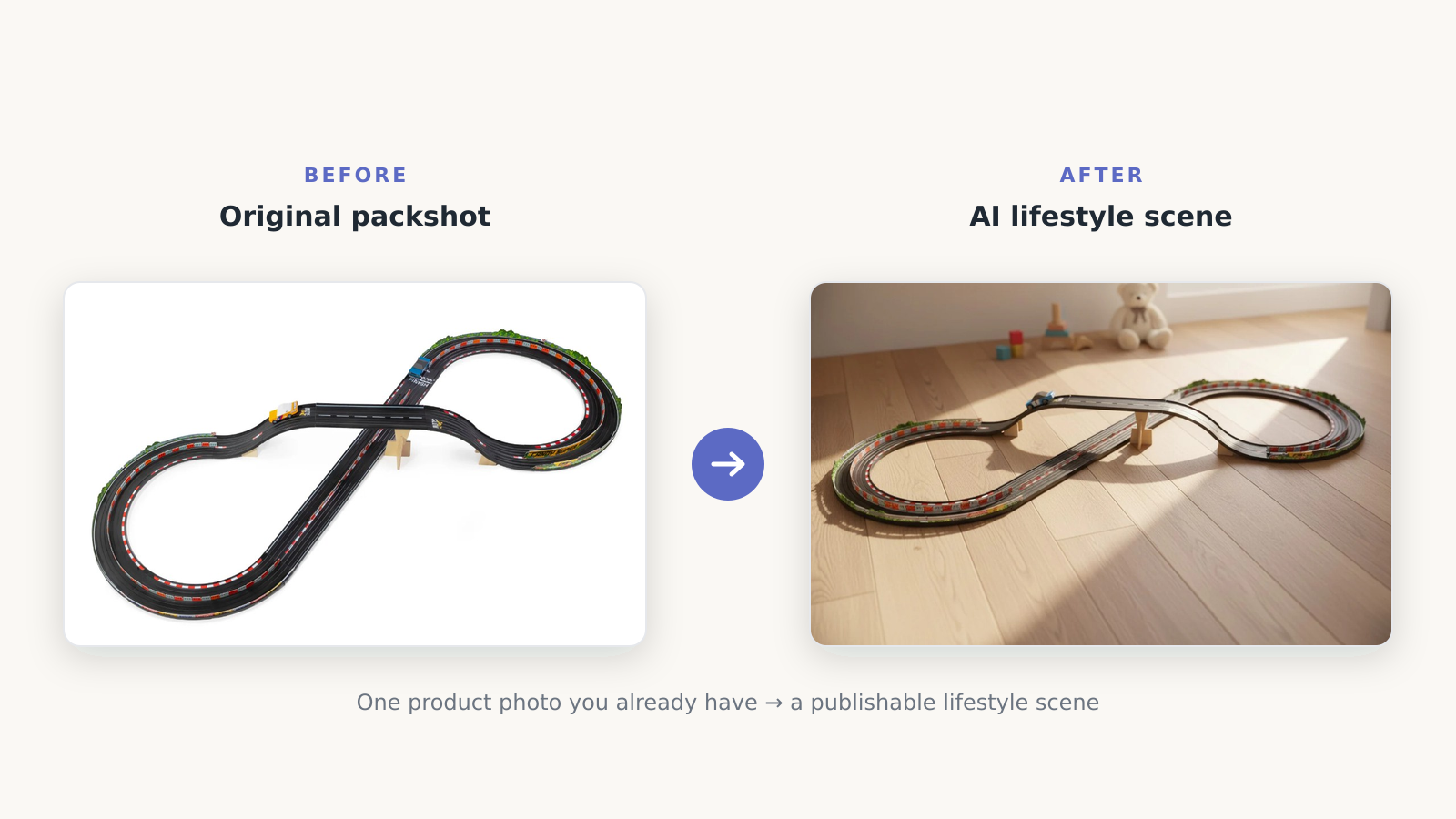
Before → after: one product photo in, lifestyle scenes out
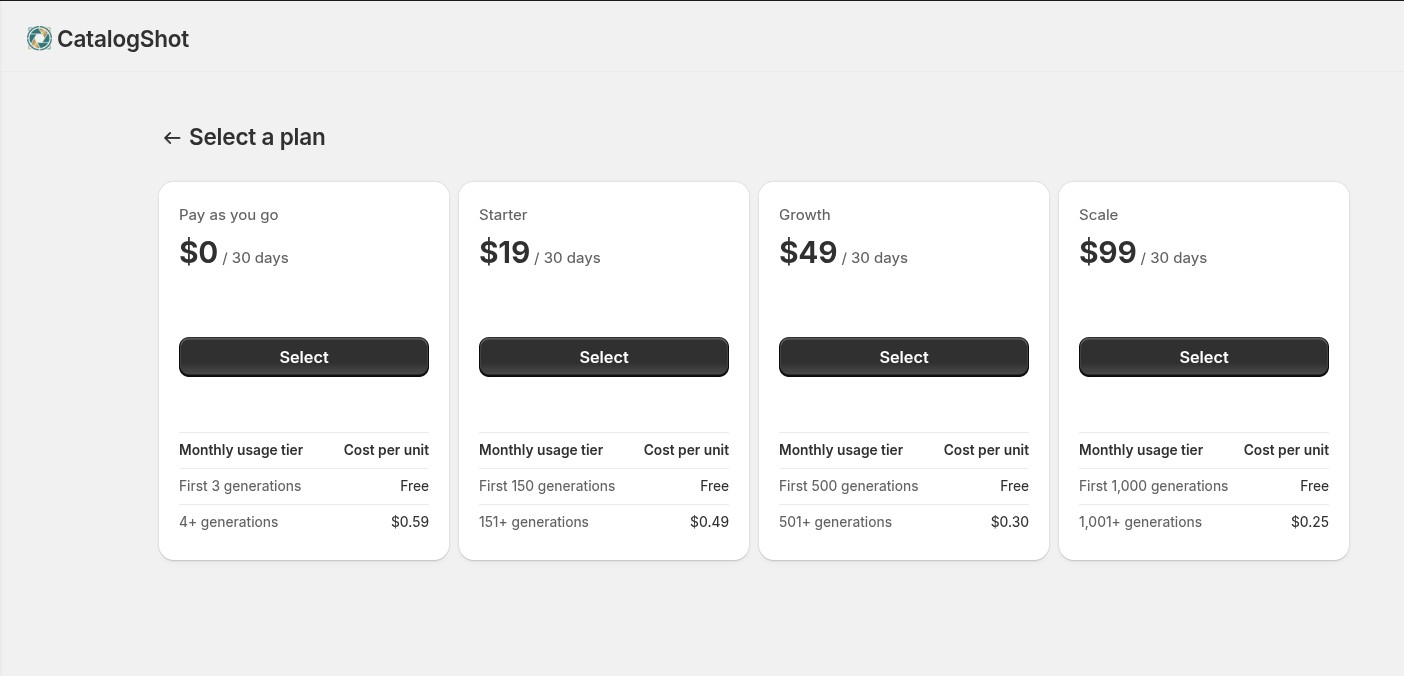
Plans — start free on Pay as you go
Pay as you go is $0/month and includes 3 free images every month — a
permanent free tier, no time limit. Generate up to 3 images a month at no cost;
beyond that it’s $0.59 per image. When you want more volume,
Starter / Growth / Scale include a larger monthly allowance at a lower per-image
rate. Generations are the unit each plan meters.
Pay as you go
$0/mo
3 generations included
$0.59 per generation after
Starter
$19/mo
150 generations included
$0.49 per generation after
Most popular
Growth
$49/mo
500 generations included
$0.30 per generation after
Scale
$99/mo
1,000 generations included
$0.25 per generation after
2. Getting around
🏠
Home
Dashboard — stats, plan status, shortcuts.
📦
Products
Your catalog — pick what to work on.
🎬
Scenes
Your library of reusable looks.
💳
Billing
Plan, usage, upgrade.
One more opens from the flow: Generate (click a product).
3. The dashboard
Your account at a glance, plus fast ways into the work.
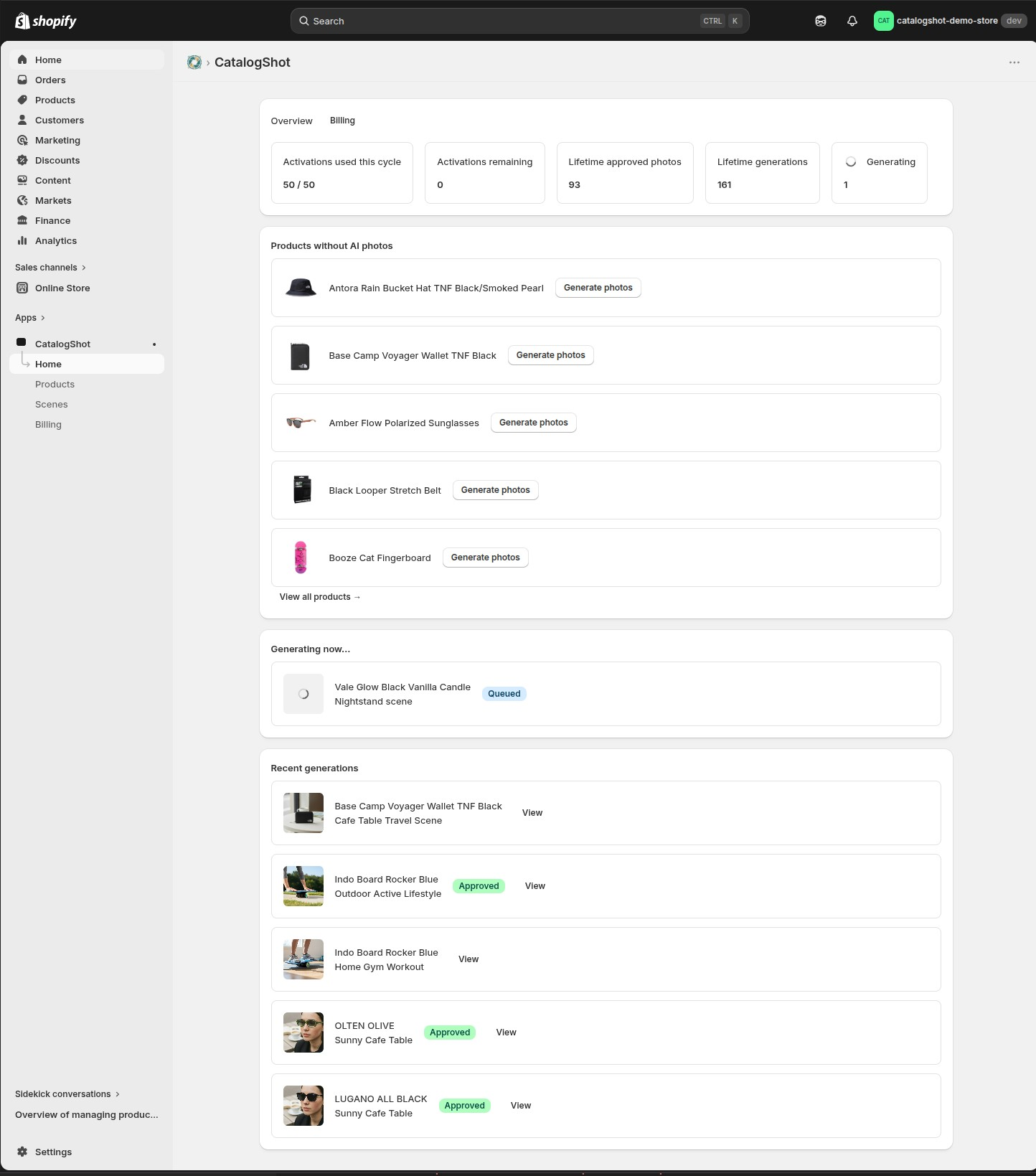
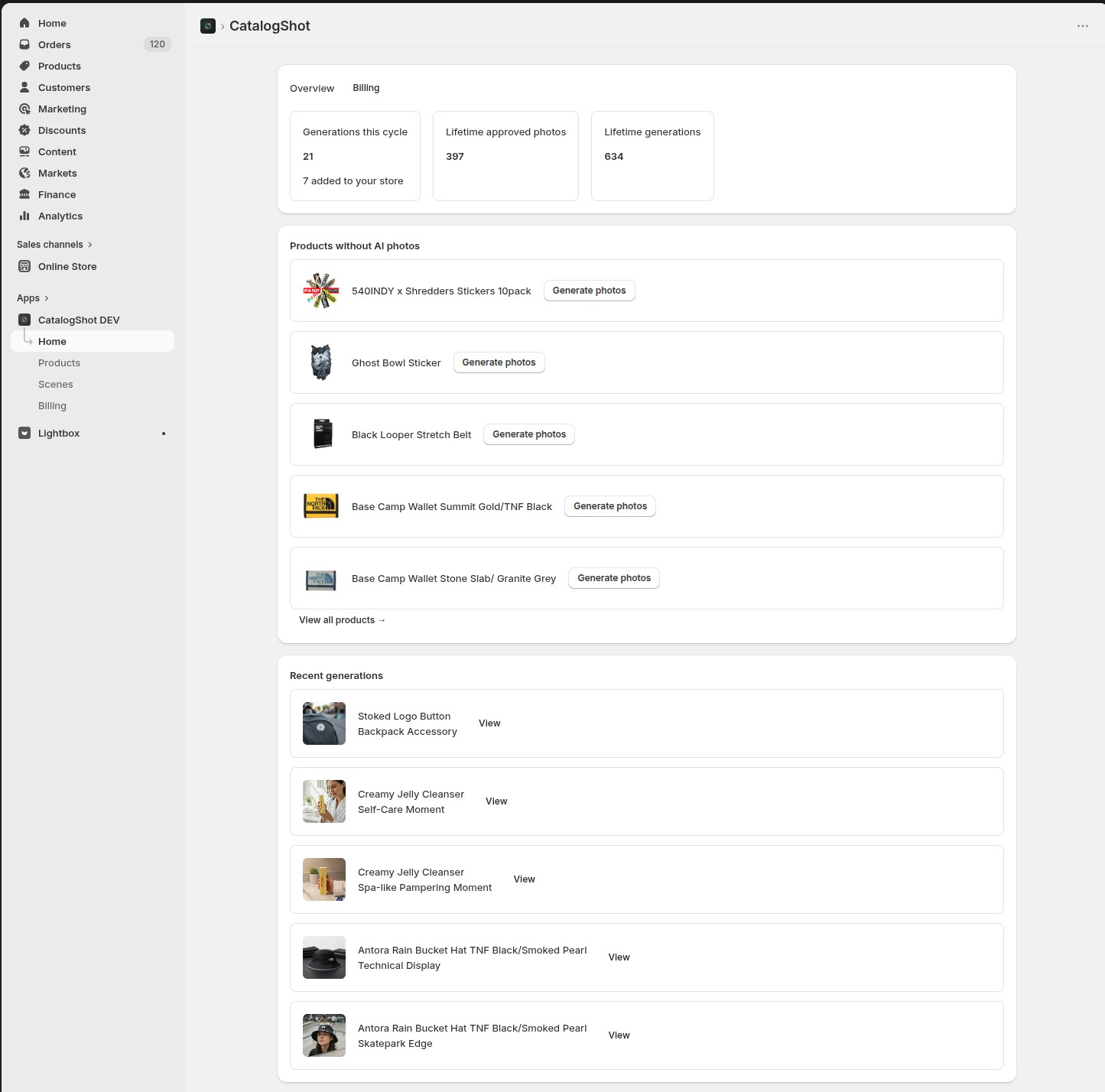
The dashboard: overview stats, products without AI photos, and recent generations
📊
Overview
Your plan and generations used this cycle, plus lifetime totals.
⏳
Live progress
A Generating box during batches; the page auto-refreshes every 5 seconds.
🆕
Quick starts
Products without AI photos and Recent generations jump you straight back in.
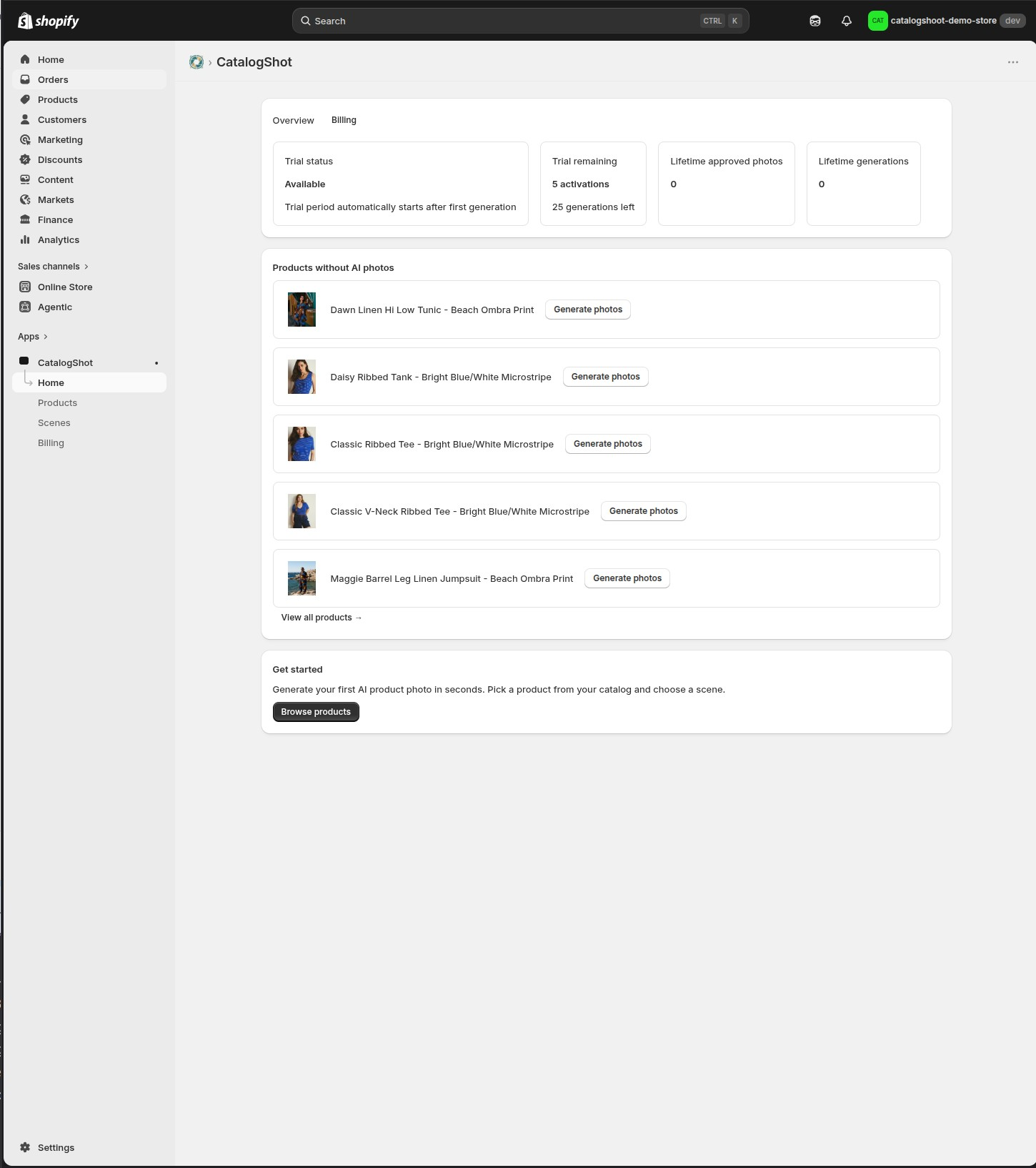
Plan status and remaining quota“Generating now…” — a batch in progress with live spinnersThe empty “Get started” state for a brand-new account
4. Products
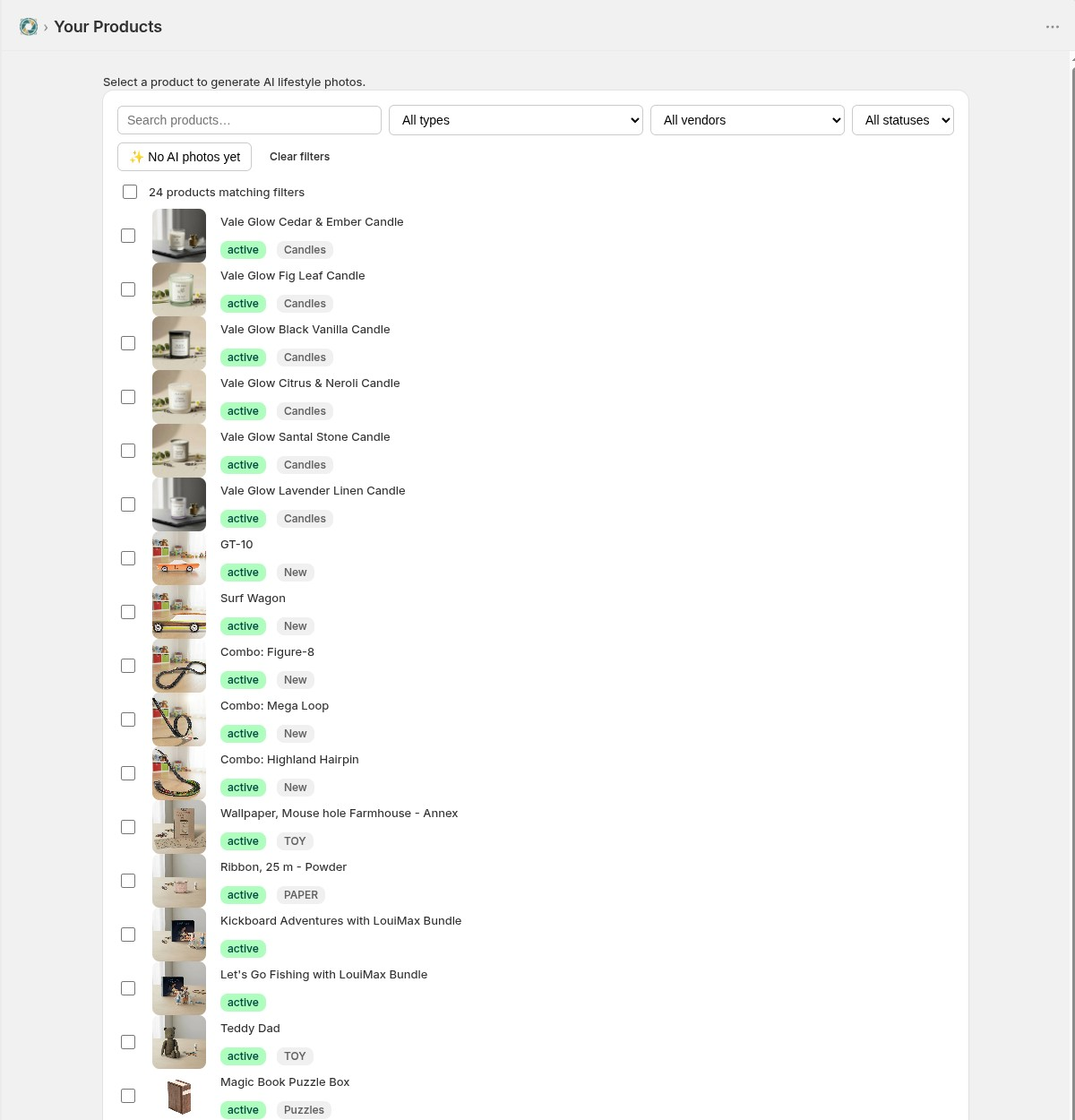
“Your Products” → pick one to generate. Two tabs sit up top — Products (your catalog) and Generated photos (every AI photo you’ve made, see §7). Work one at a time, or in bulk.
The Products page: filter bar and product list
🔎
Search that sticks
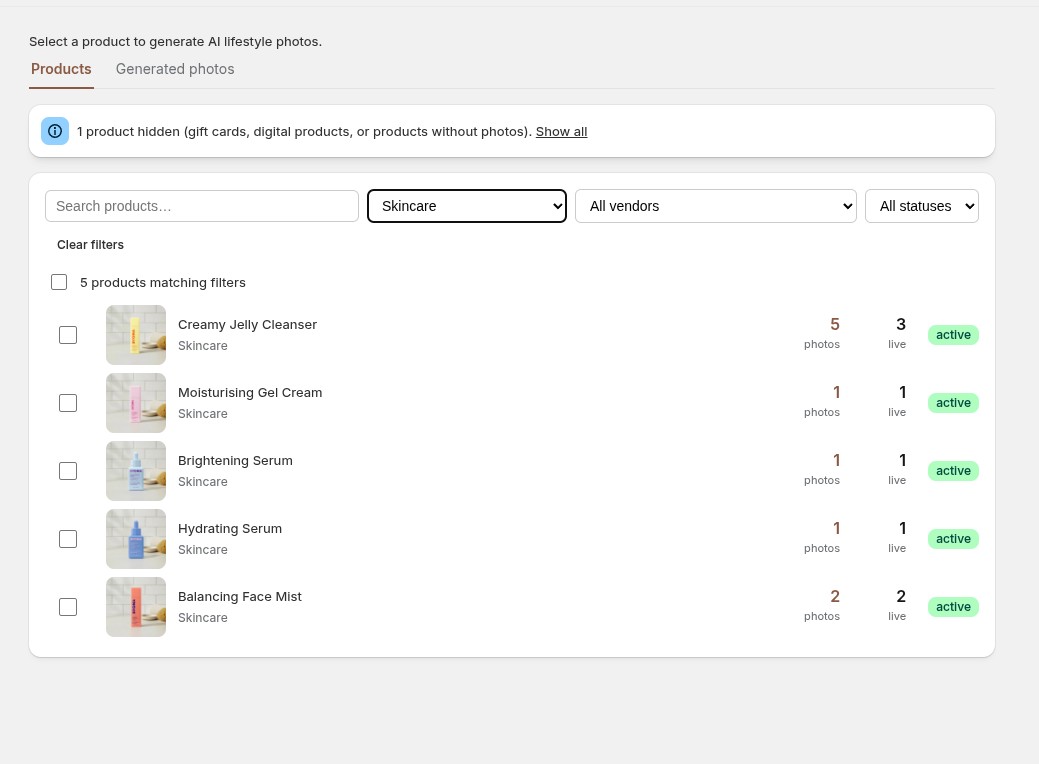
Search, type, vendor, status, Clear filters — and Back drops you right back where you were (search, scroll and all). Each row shows its photos / live counts and an ✨ AI photos badge at a glance.
✅
Eligible only
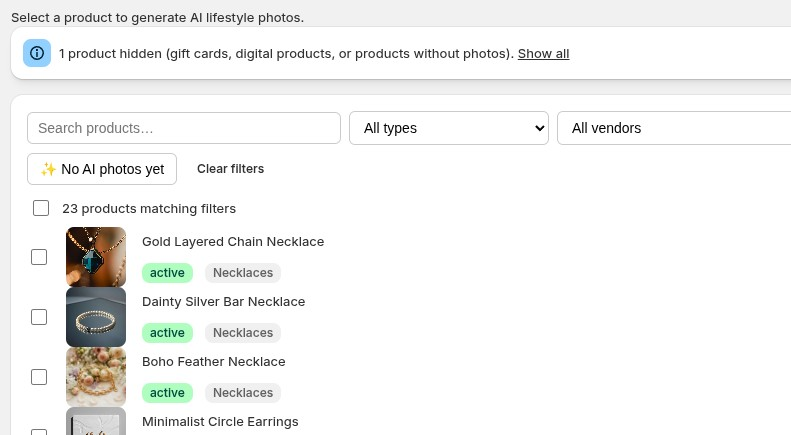
Needs physical products with a photo. Others are dimmed: Gift card, Digital product, No product photo.
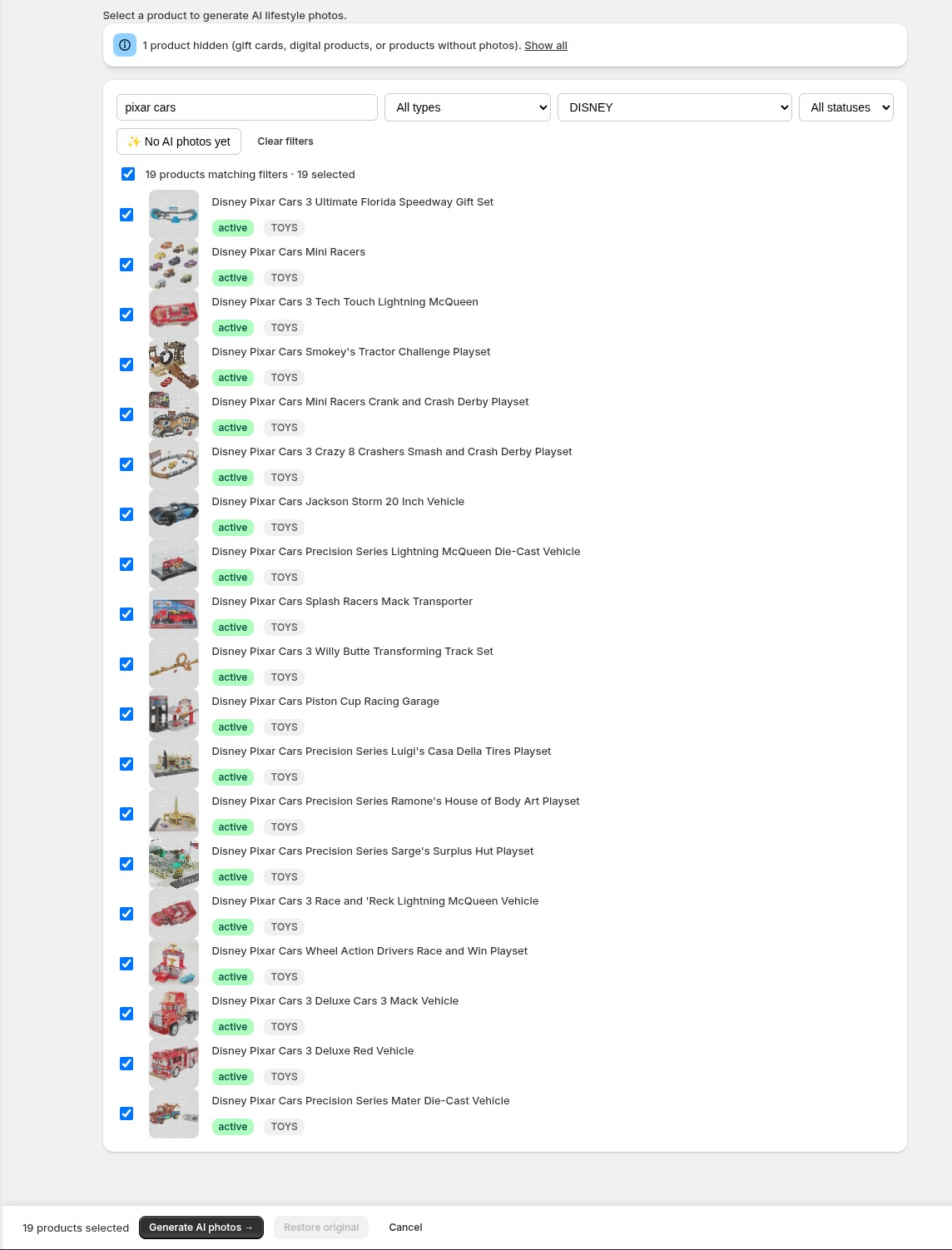
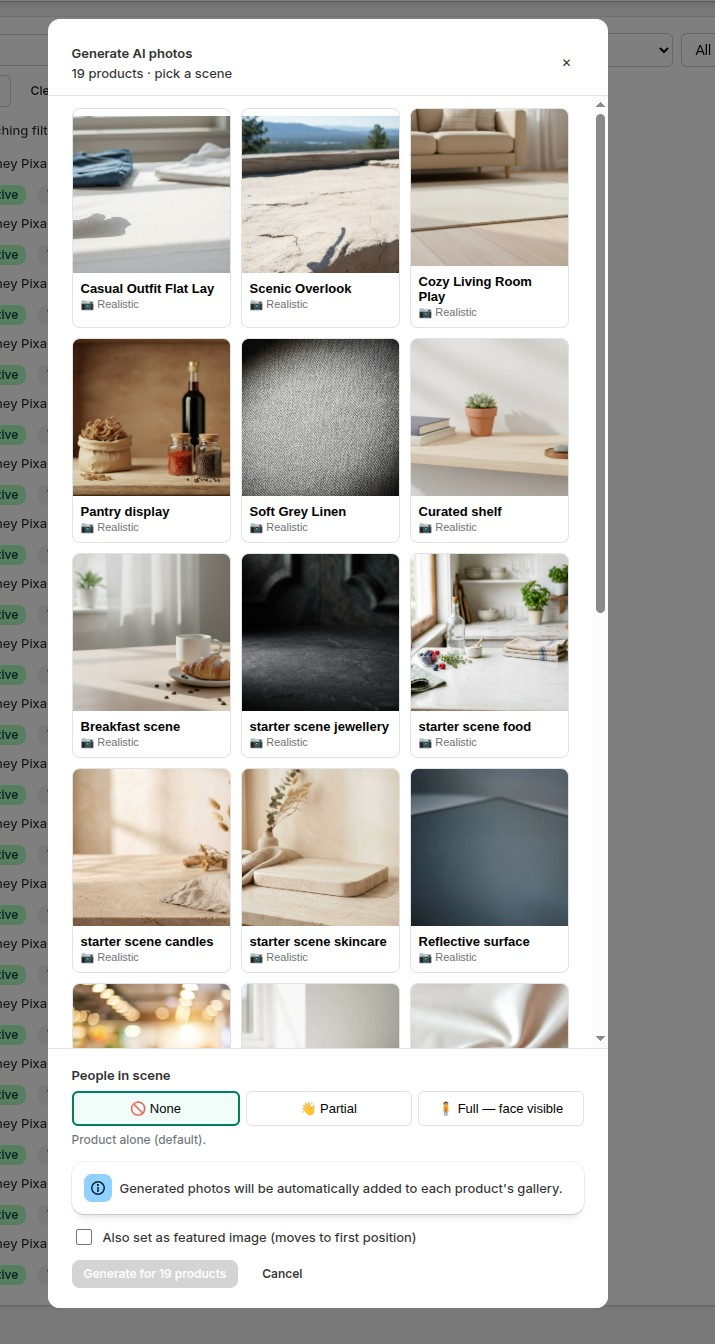
Search and filters that persist — Back returns you exactly where you left off, with per-row photos / live countsIneligible products are dimmed with a reason badge, plus the “hidden” bannerSelecting products reveals the bulk action bar at the bottomThe batch generate modal: pick a saved scene and generate across products
5. Generate a product
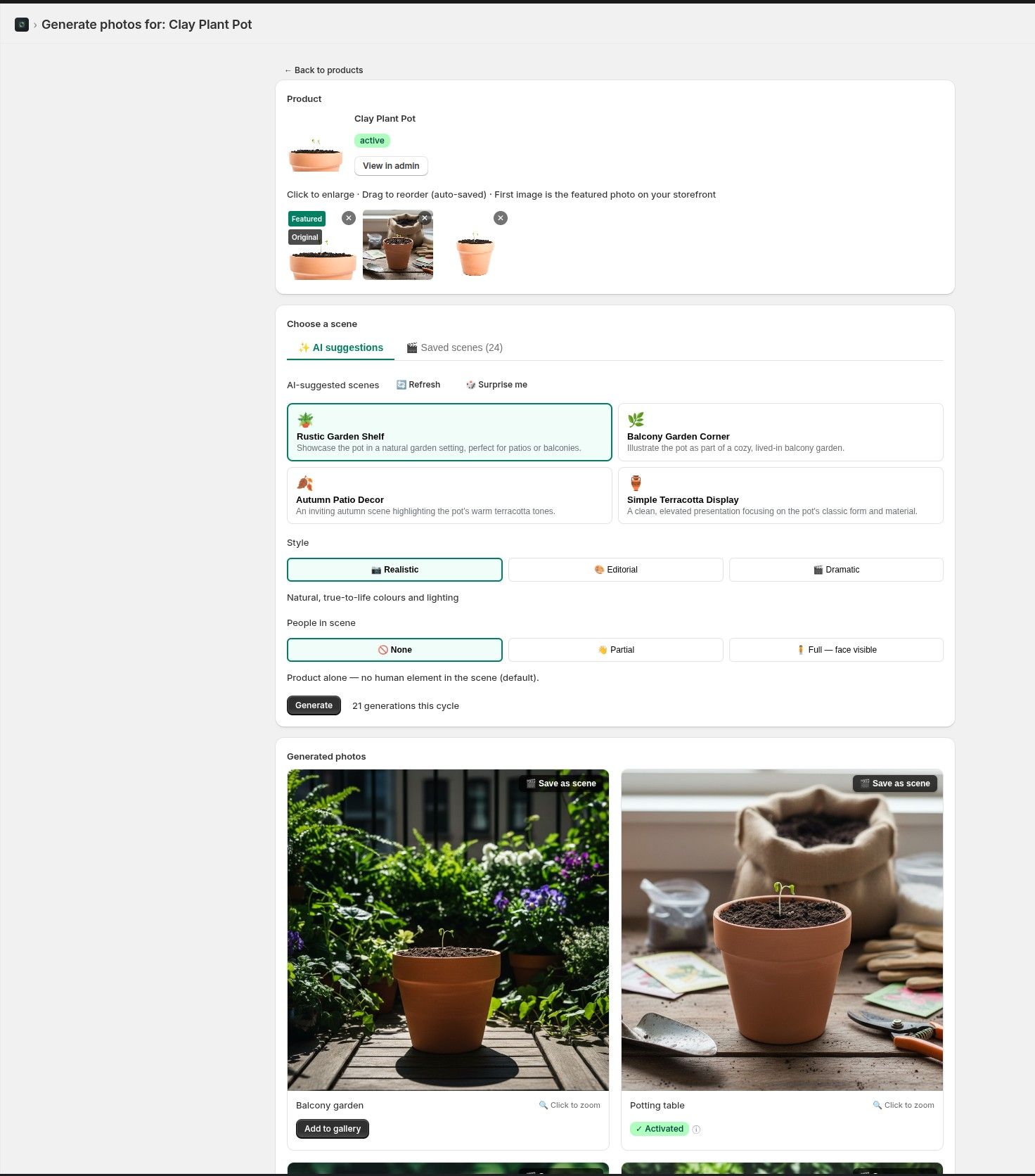
The heart of the app — product + gallery, scene setup, results.
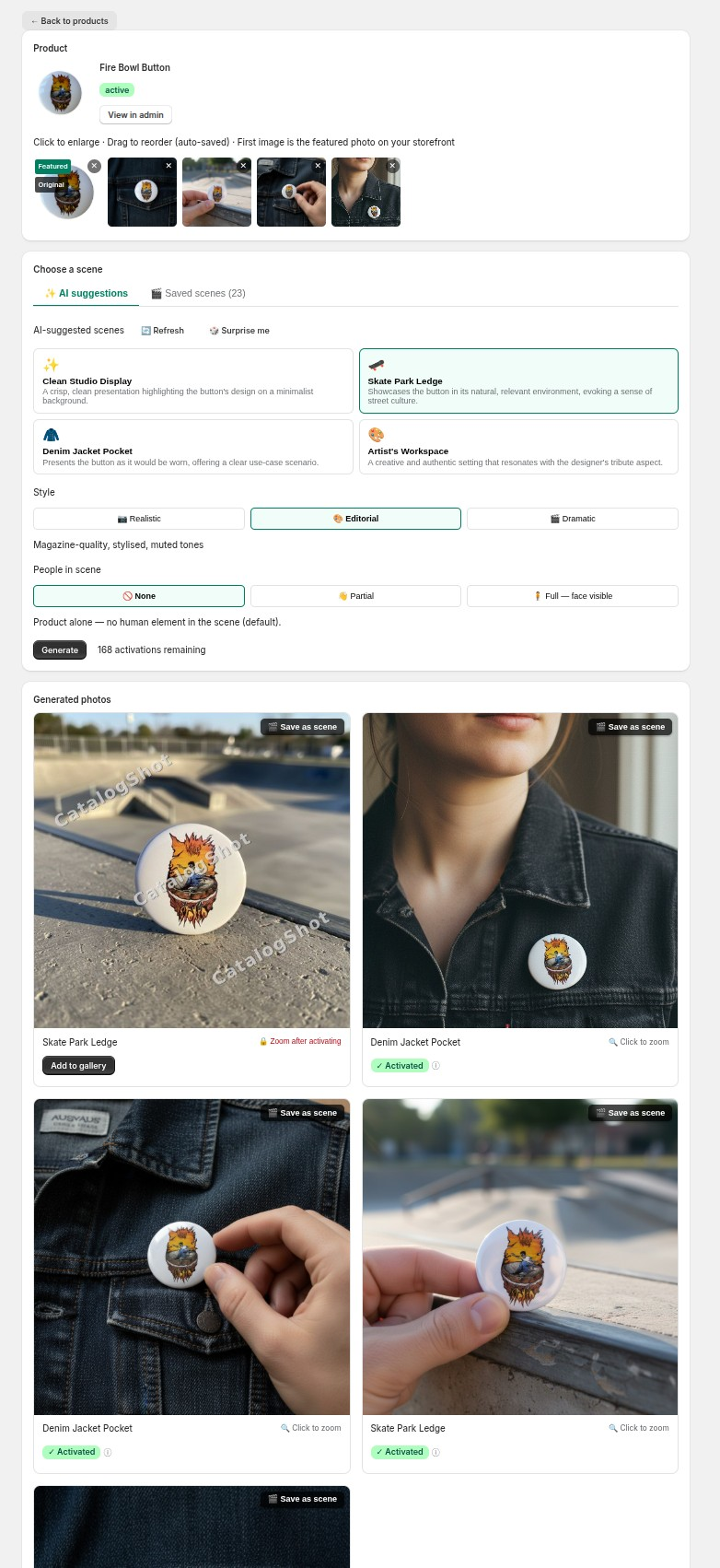
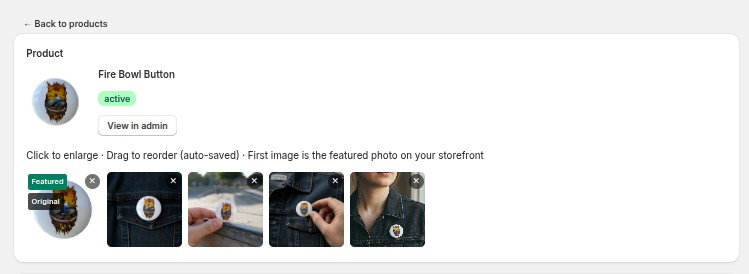
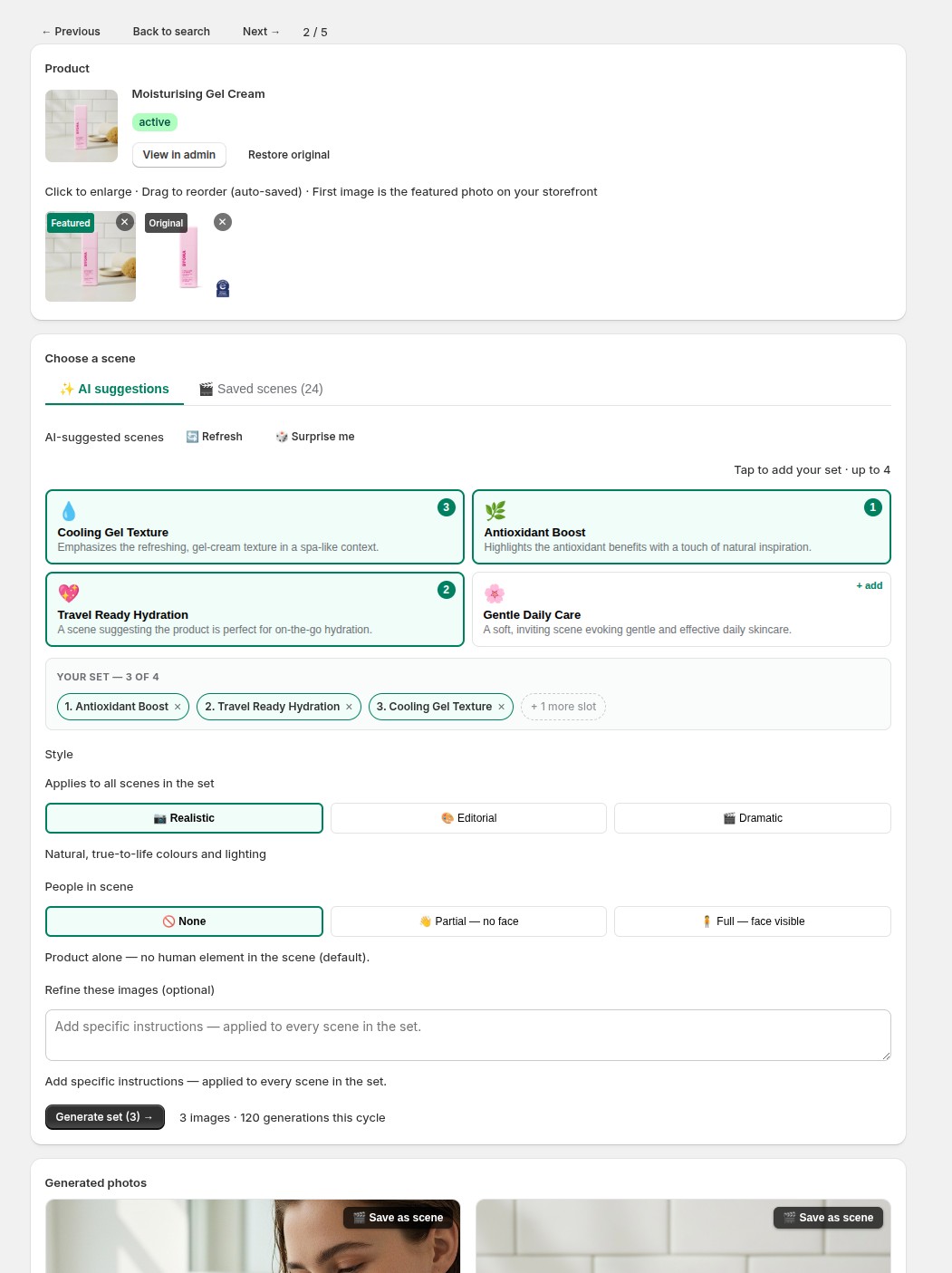
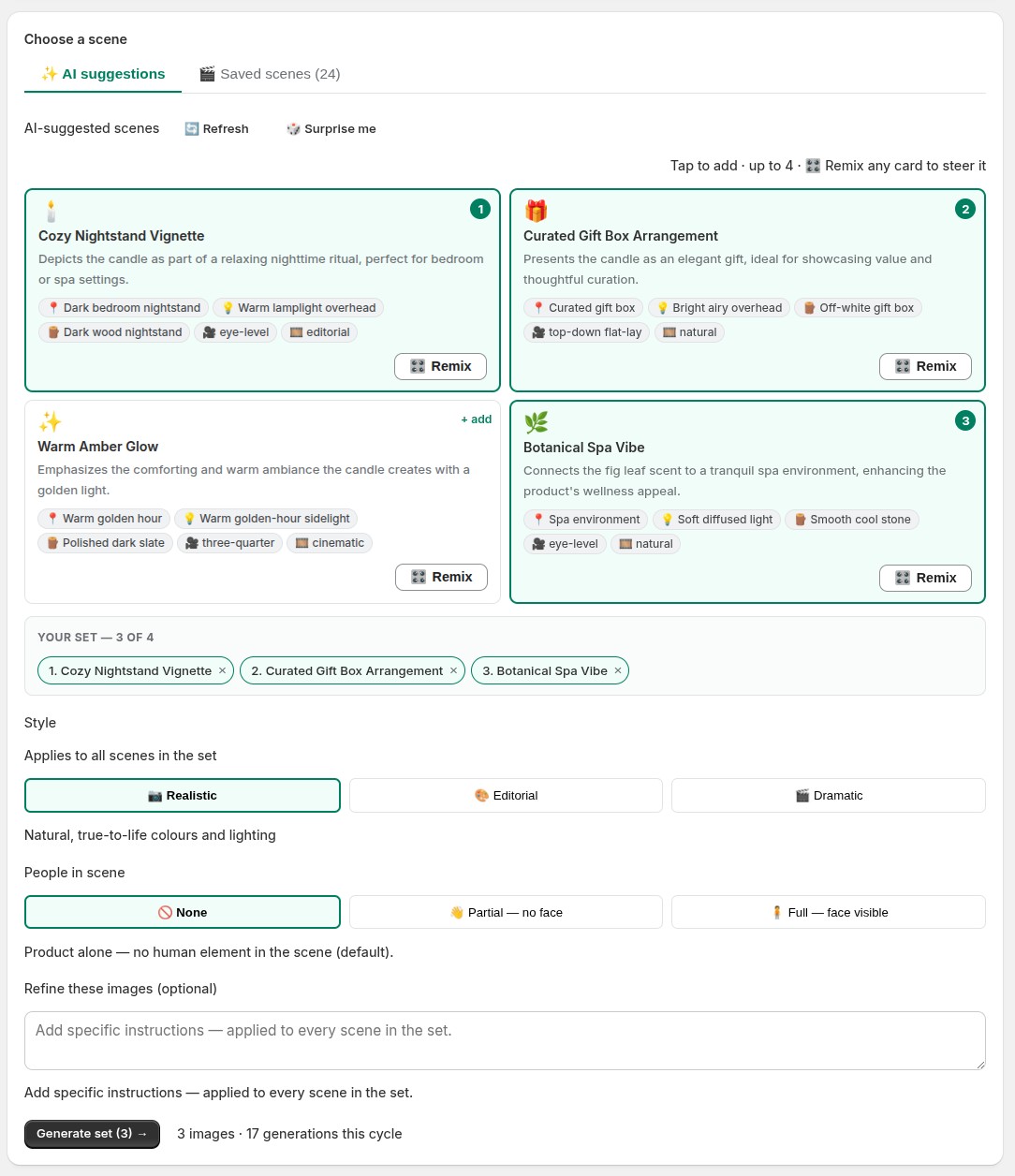
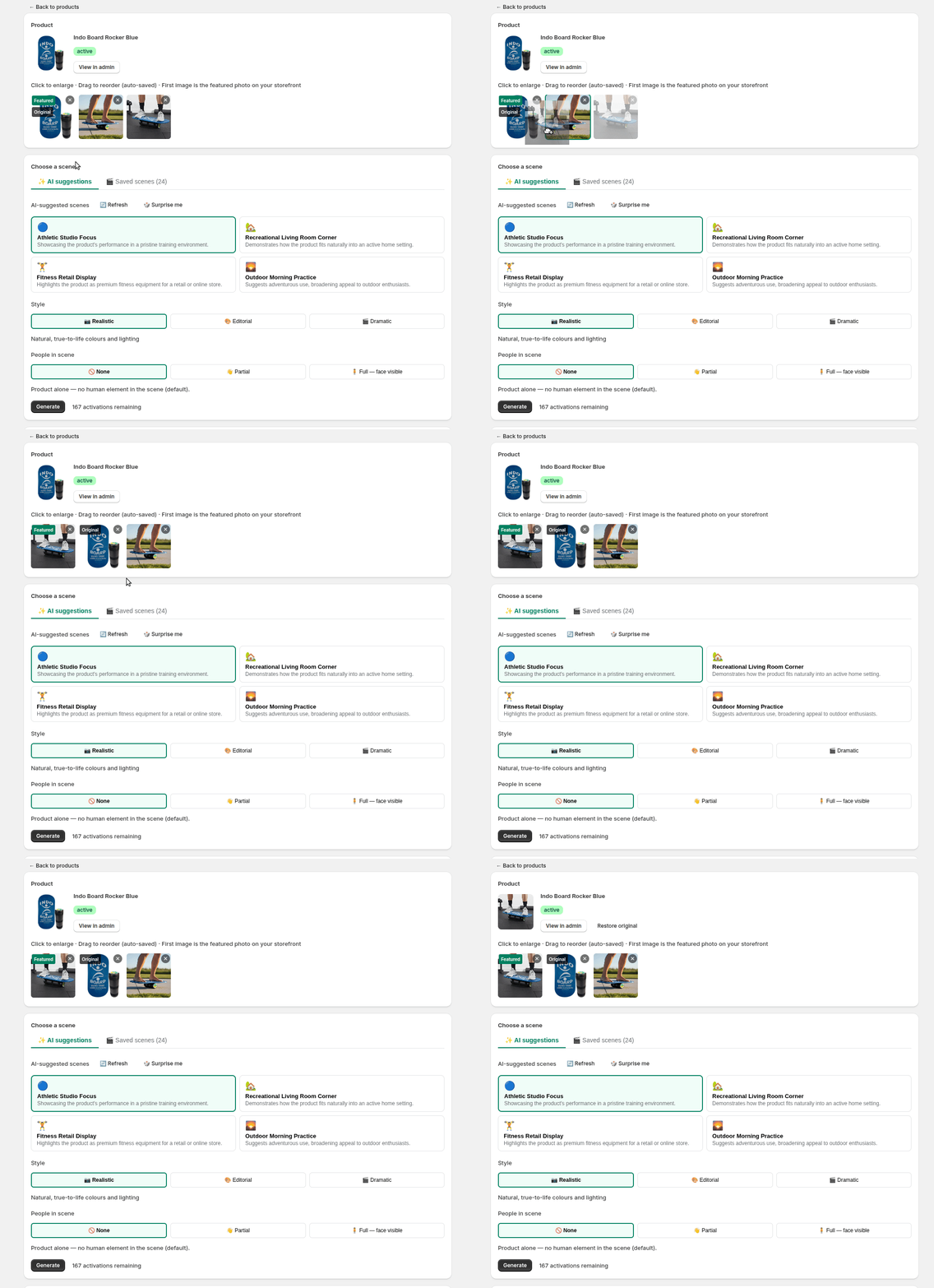
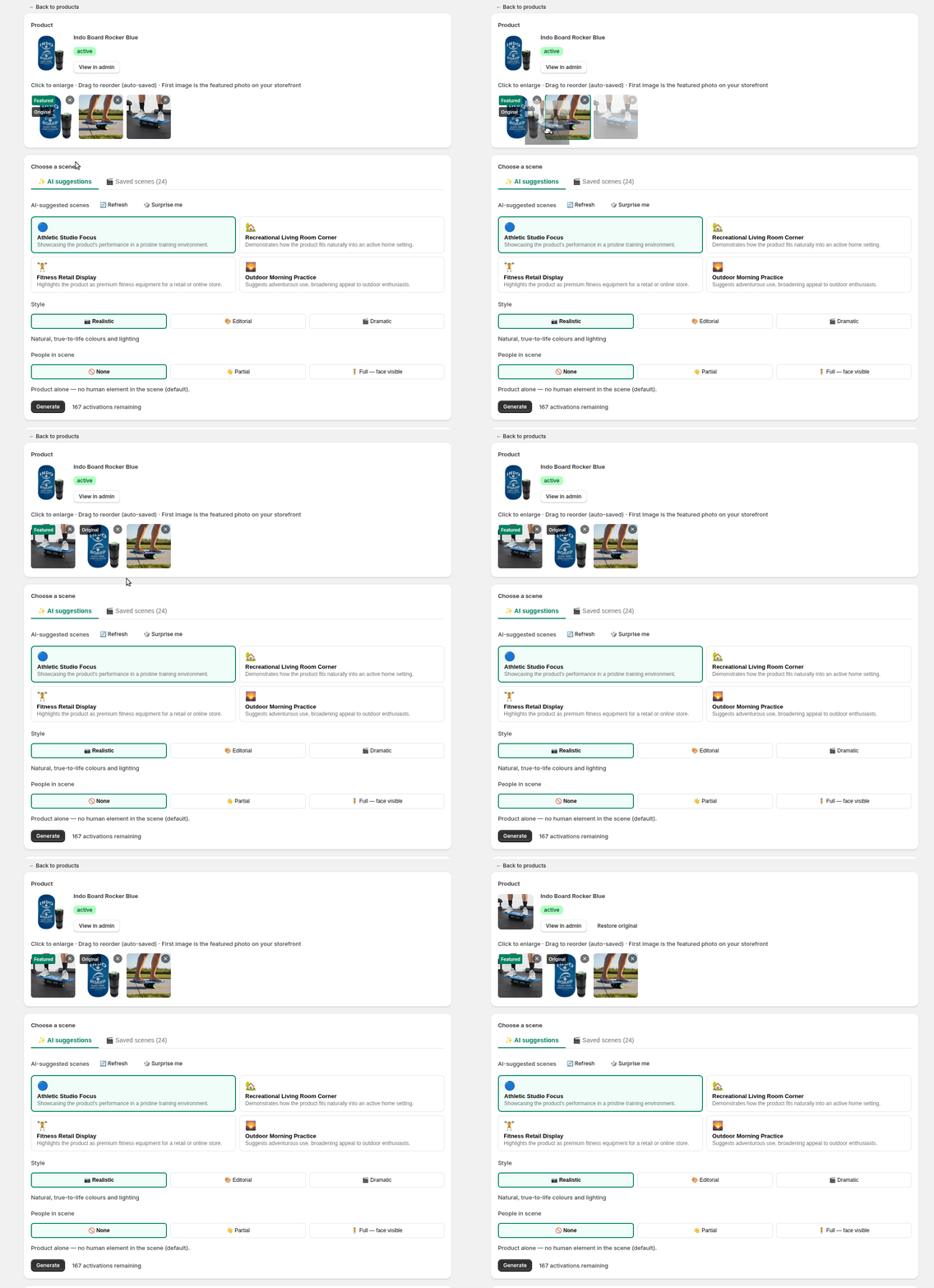
The full Generate screen, top to bottomProduct header with View in admin / Restore original, and the gallery strip← Previous · Back to search · Next → — move through your search results from the product screenThe ✨ AI suggestions tab — tap up to 4 scenes into a set (each card shows its picks + a 🎛️ Remix button), Refresh / Surprise me for more, and refine the whole set with a line of plain text
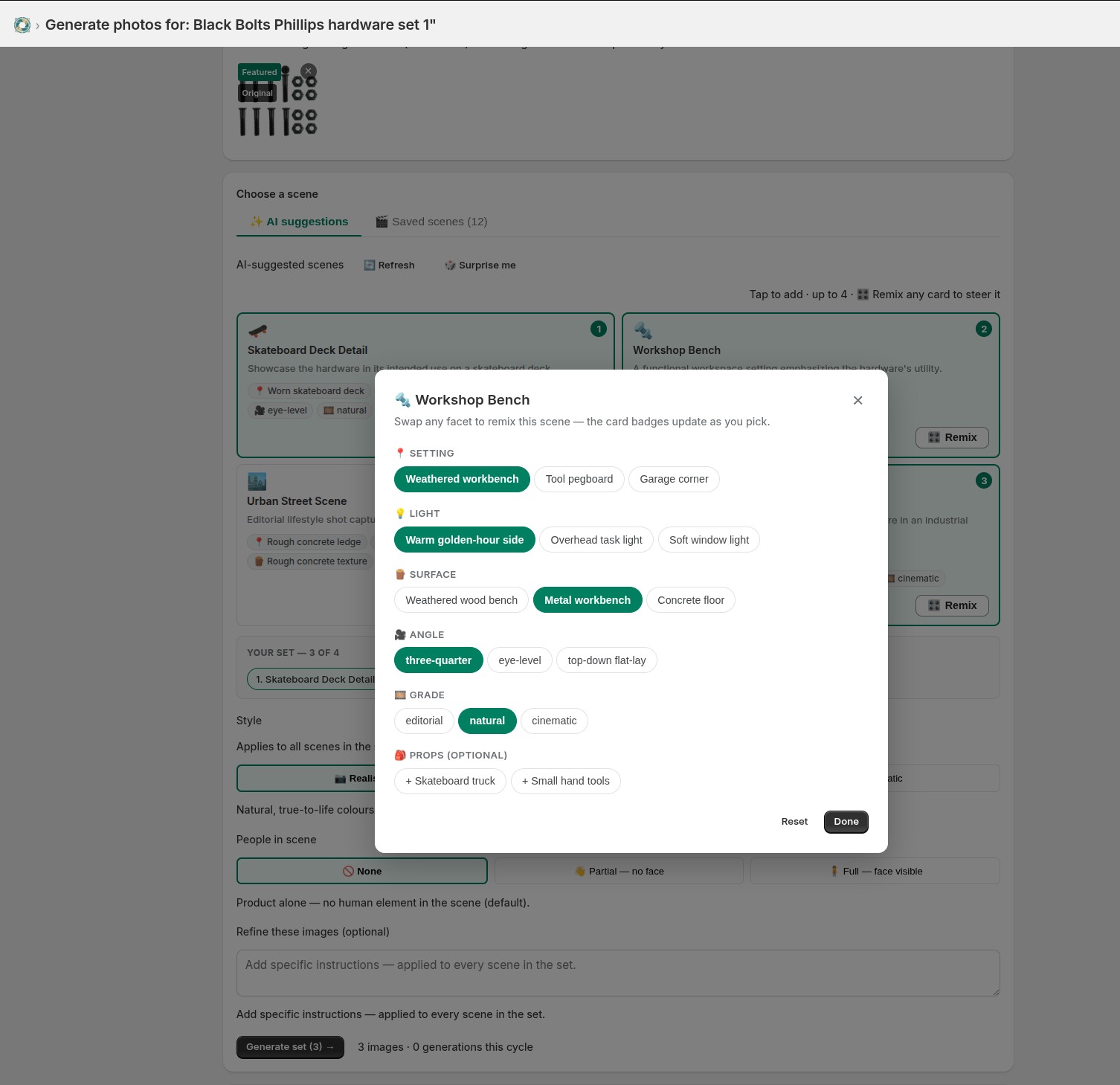
Steer any scene — tap 🎛️ Remix. Every suggested scene has a Remix button.
Open it and each part of the shot becomes a set of scene-aware options —
setting, light, surface, camera angle, grade, plus optional props. Pick
what you like and the card badges update live. Leave a scene untouched and it
renders exactly as suggested; touch one chip and it’s yours. Still no
prompt-writing.
🎛️ Remix — swap setting / light / surface / angle / grade (+ props) per scene; the card badges update as you pick
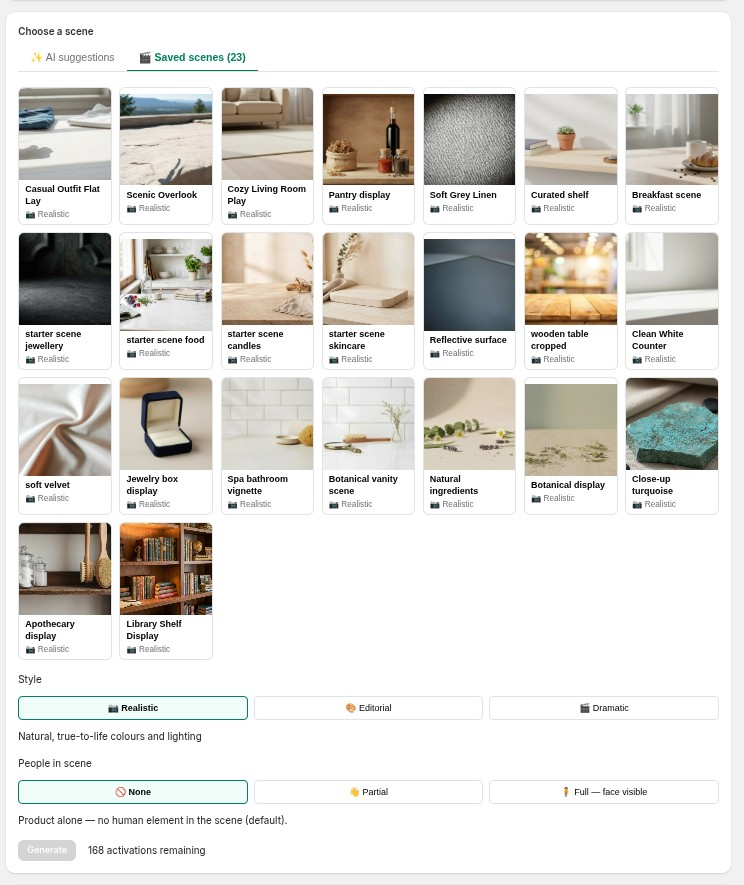
Already love a look? Reuse it from the 🎬 Saved scenes tab — one tap to
apply.
The 🎬 Saved scenes tab — reuse a look across products
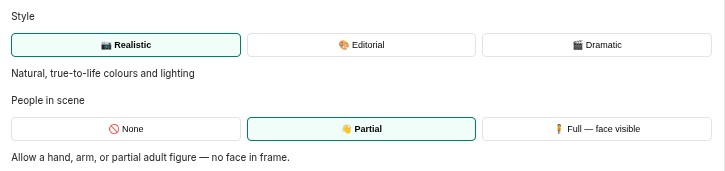
🎨
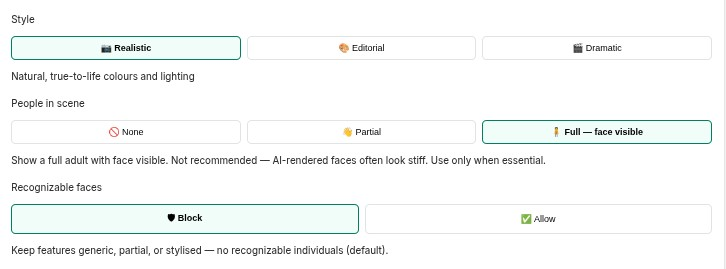
Style
📷 Realistic, 🎨 Editorial, or 🎬 Dramatic — the overall mood.
🧍
People in scene
🚫 None (default), 👋 Partial, or 🧍 Full. Skip faces — AI faces look stiff.
🛡
Recognizable faces
Only for “Full”: 🛡 Block (default) or ✅ Allow.
Style and People-in-scene controls with their helper captionsThe Recognizable faces control (only shown for “Full”)
Hit Generate. The quota line beside it shows what’s left; a spinner banner
runs while it works (“…this takes ~45 seconds”).
The Generate button with the remaining-quota lineThe in-progress banner with spinner
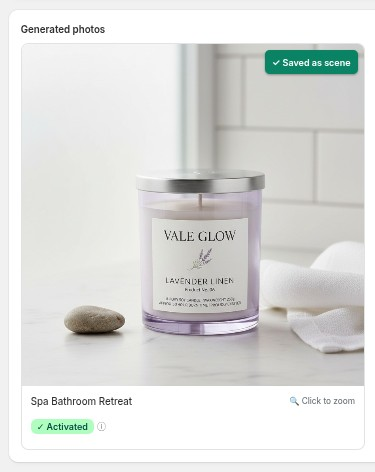
Your results land in a clean grid — every card is full-resolution with
🔍 Click to zoom. Activated cards show ✓ Activated; the rest show
Add to gallery to publish them to Shopify.
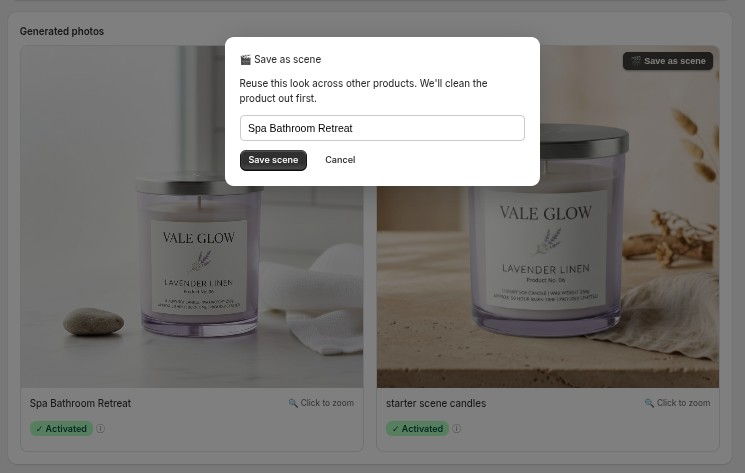
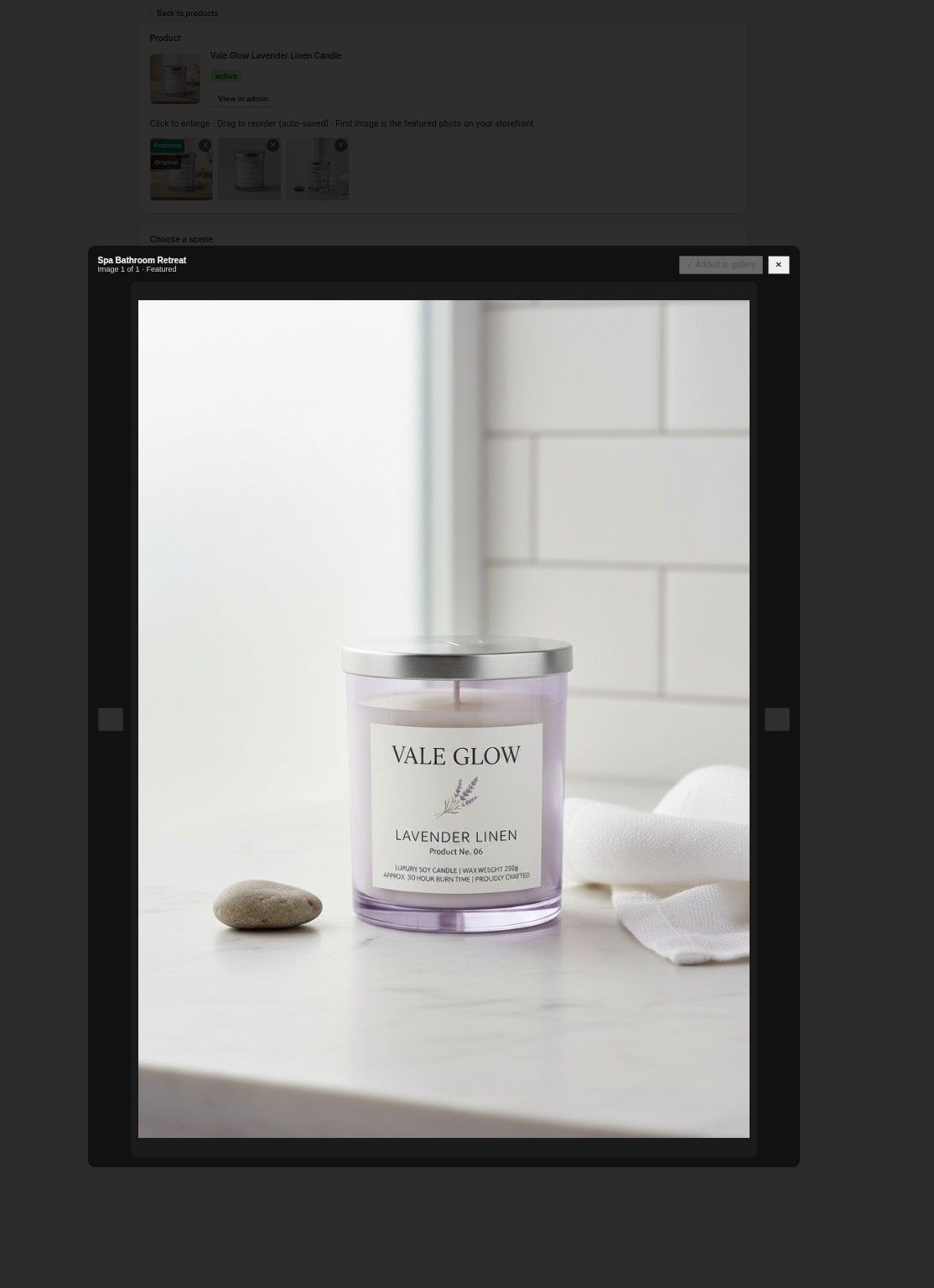
Generated photos grid — activated vs. not-yet-activated cardsThe 🎬 Save as scene overlay and naming popoverThe full-resolution zoom lightboxA card showing the ✓ Saved as scene chip
6. Scenes
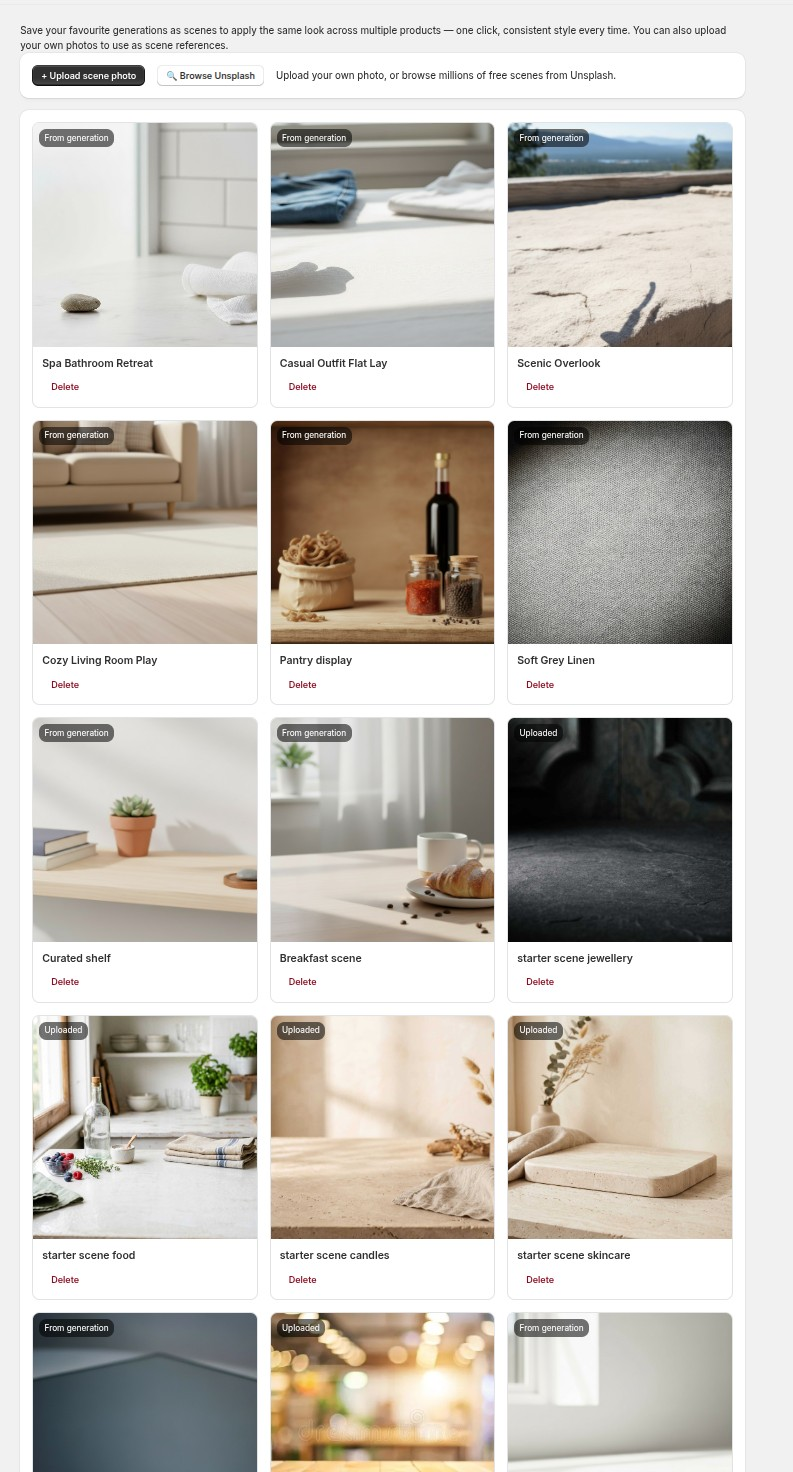
A scene is a reusable look. Three ways to make one:
🎬
Save a generation
Hit 🎬 Save as scene on any result you love.
⬆️
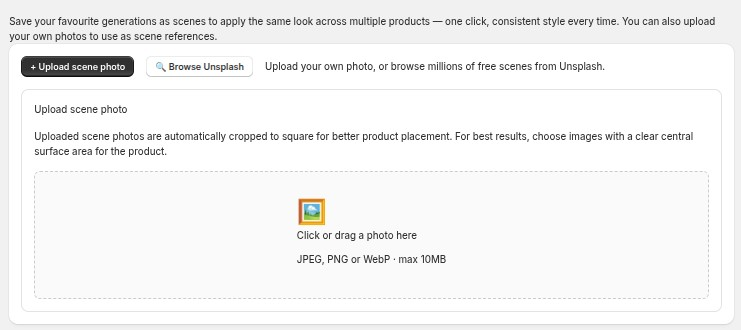
Upload your own
Drop in a photo — auto-cropped to square.
🔎
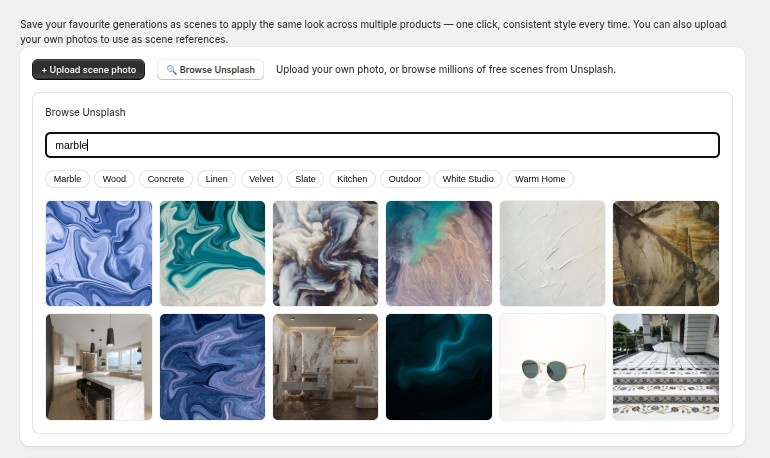
Browse Unsplash
Search millions of free photos; attribution handled for you.
The Scenes library with saved scene cards and source badgesThe Upload scene panel — drag-and-drop, then name itThe Browse Unsplash panel — search, pick, and save with attribution
Saved once, used everywhere — scenes appear in the 🎬 Saved scenes tab on
every product and in the batch modal, for one consistent look across your
catalog.
7. Manage the gallery
The gallery editor mirrors your live Shopify images: drag to reorder
(auto-saved), and the first image is your featured photo. Delete with the
×.
Reordering gallery images by drag (auto-saved)Restore original — a safe undo backed by retained originals
The Generated photos tab — review & bulk-activate
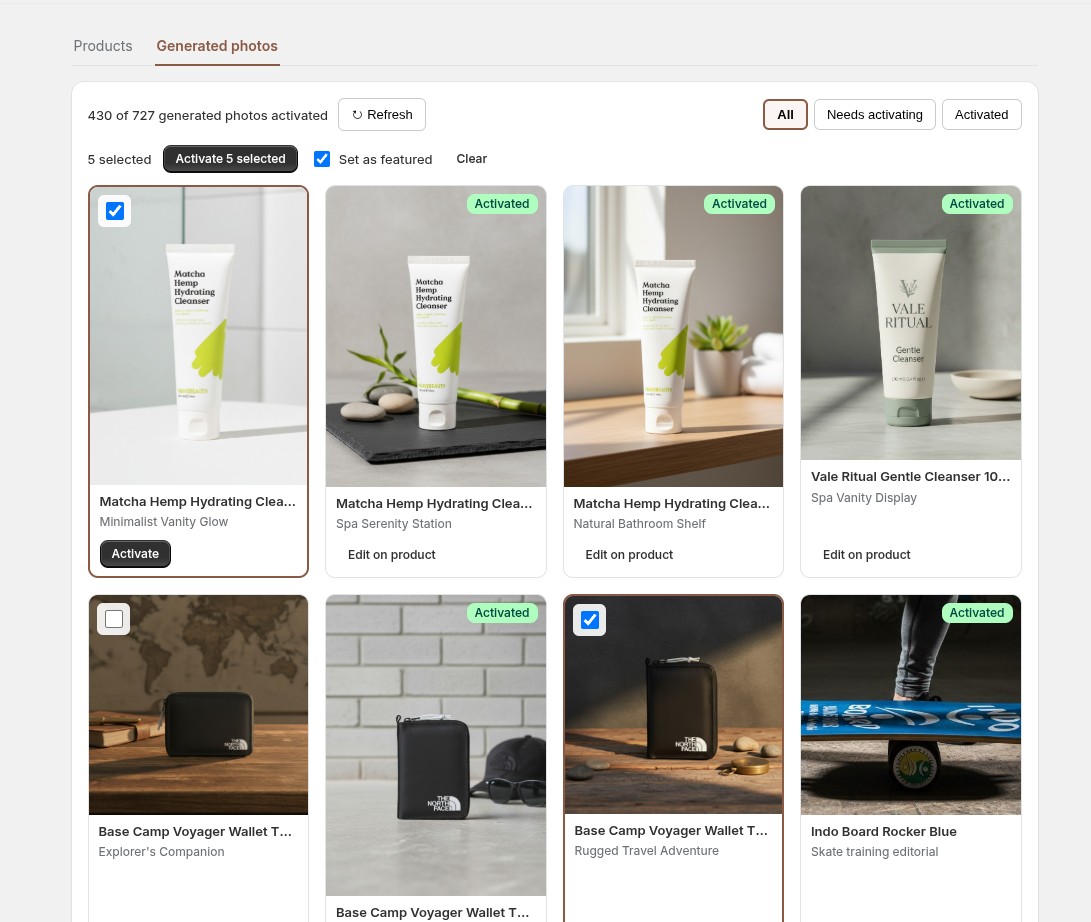
The Generated photos tab (next to Products) gathers every AI photo across all your products, newest first — so you can fire off generations, then come back and publish the keepers in one place, away from the generate flow.
The Generated photos tab — select photos and activate (optionally set as featured) in bulk
✅
Activate in bulk
Tick the ones you want, hit Activate N selected, and they all go live at once. Tick Set as featured to also make each its product’s main image.
🔎
Review fast
Filter All / Needs activating / Activated, ↻ Refresh to pull in newly-finished photos, and click any photo to zoom or crop before publishing.
8. Billing & usage
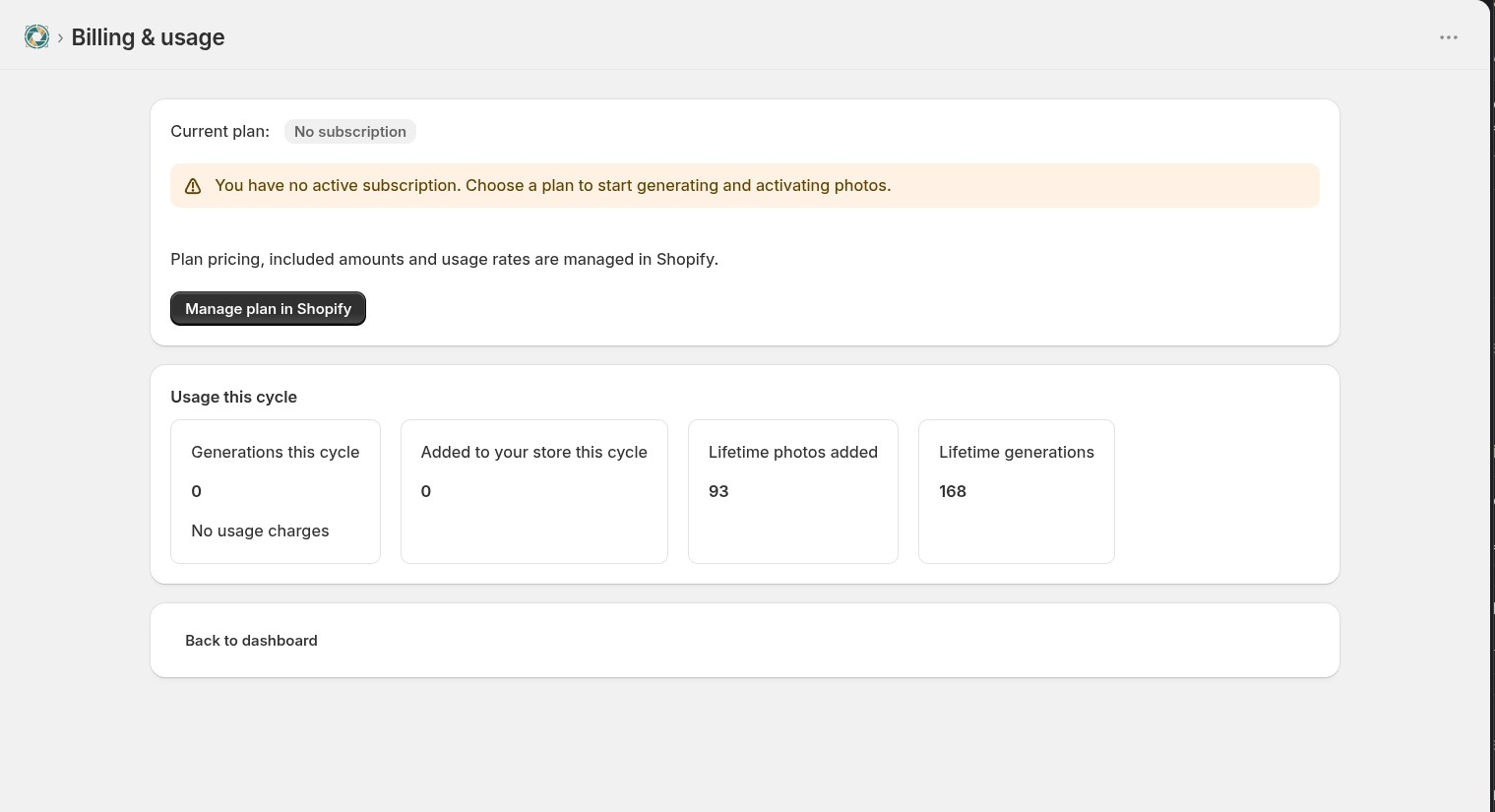
Plan, Manage plan in Shopify (where subscriptions change), and
usage boxes for this cycle plus lifetime totals.
The Billing & usage pagePlans at a glance: Pay as you go / Starter / Growth / Scale
Upgrade = Manage plan in Shopify → pick a plan → limits update instantly.
Payment is handled entirely by Shopify managed billing.